Membership card
MemberOrganizer makes it possible to create membership cards for members.
You can block members who have not paid from receiving/downloading the membership card.
Members can get their membership card in many different ways:
Sent by email after payment is registered.
Via the MemberOrganizer app.
Via the Member Portal.
If you have a dedicated card printer, membership cards can be printed on a plastic card in credit card size.
You can design the membership card yourself, and you can e.g. do the following:
Add a background image (also as a kind of watermark).
Add a logo.
Add fixed texts.
Add “dynamic” texts — e.g. the member’s name, date of birth and so on.
Decide yourself where on the membership card the various things — texts, logo, etc. — should be placed.
Here is an example of a membership card, as well as the place in the system where you can design the membership card:
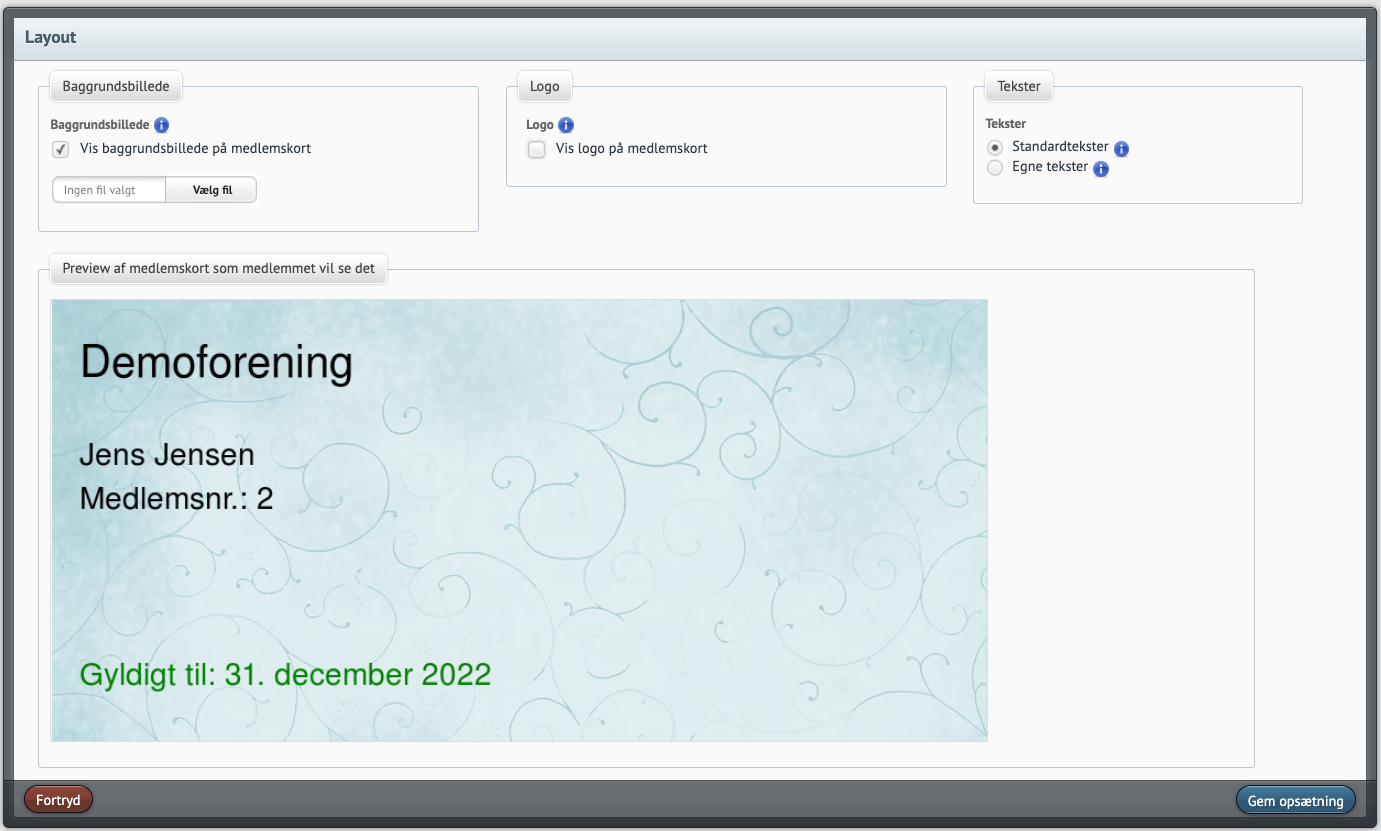
The only customization made in the example above is that a background image has been inserted. The member’s name, member number and the membership card’s expiry date are the default setup, and this can naturally be changed if you wish. In that case tick “Custom texts”, as shown in the example above on the right.
Setting up the membership card
The membership card can be designed under “Configuration -> Membership card: Member Portal & App -> Setup”.
The system always shows what the membership card looks like when you make even a small change.
You specify with x and y coordinates where the various things, such as texts and images, should be placed on the membership card.
When you are satisfied with the appearance of the membership card, the membership card can be made available to members.
Sending via email
If you want to send the membership card via email, you must first create a text template. This is done under “Communication -> Text templates” and then “Create new text template”.
Here you can write the following in the body text — for example:
Attached is the membership card
At the bottom of the page, under what is called “PDF attachment”, choose “Membership card (C80 format) for A4 printer”.
C80 format is the size a credit card has, and thereby the system will attach a membership card in credit card size to the sent email, and the membership card can be printed on an A4 printer, after which the member can cut out the membership card themselves.
Membership cards can now be sent to members, and this can be done in 2 ways:
Send when payment on the member is registered — i.e. ongoing sending.
Send collectively to all members — or perhaps only to paying members — at a specific point in time.
If you choose strategy 1, go into the activities that correspond to the memberships that members pay for, and then choose the newly created text template in the field named “Receipt when payment is registered”.
If you choose strategy 2, and you only want to send to paying members, you must have created a member report that finds the members who have paid. When the member report is created, you can use a special field named “Paid specific amount”, where you can get the system to select the members who have paid x amount within the last y days. For example all members who have paid 200 kr. within the last 30 days.
Retrieve via app and/or Member Portal
The membership card can be set up so it can be displayed in the app and Member Portal, so that members can always find the membership card if they wish.
You must activate this option first, and this is done via “Configuration -> Member Portal -> Choose modules” where you tick “See and download membership card”.
If the membership card should also be visible in the app, remember that the app must also be activated, and this is done under “Configuration -> Member Portal -> App”.
When the setup above is complete, members can log in to the Member Portal and/or app, and they will then be able to find the membership card. In the Member Portal the member can also download the membership card.
Limit display of membership card
If members can retrieve/view the membership card via the Member Portal and/or app, and you want only paying members to be able to retrieve/view the membership card, read on below.
Create a member report that members must be part of in order to have the membership card displayed:
Create a member report under “Members -> Member reports” and then click “Create new member report”.
If you want only paying members to be able to retrieve the membership card, add an “AND criterion”, where the member field “Paid specific amount” is chosen and the following is entered in value:
200;180
The above means that the member must have paid in at least 200 kr. within the last 180 days.
Click “Save criterion”.
Click “Save member report”.
Now the system must be told that it is this member report that grants access to being able to retrieve/view the membership card. This is done as follows:
Choose “Configuration -> Member Portal -> Choose modules”.
Tick “Membership card: Member can download membership card” (perhaps already done).
Choose “Configuration -> Member Portal -> Membership card”.
Optionally choose the member report that limits access to retrieving/viewing the membership card.
Click “Save”.