Info screen
The info screen can be used to show what is happening at a particular location on a particular day. The info screen only makes sense if you use the booking module and/or have activities with scheduled dates set.
The info screen can also be used to show who has just entered through the door in a building. This requires that you use the system’s door system.
Display of activities at a location
It is easiest explained with an example. Here is an example from a badminton club:
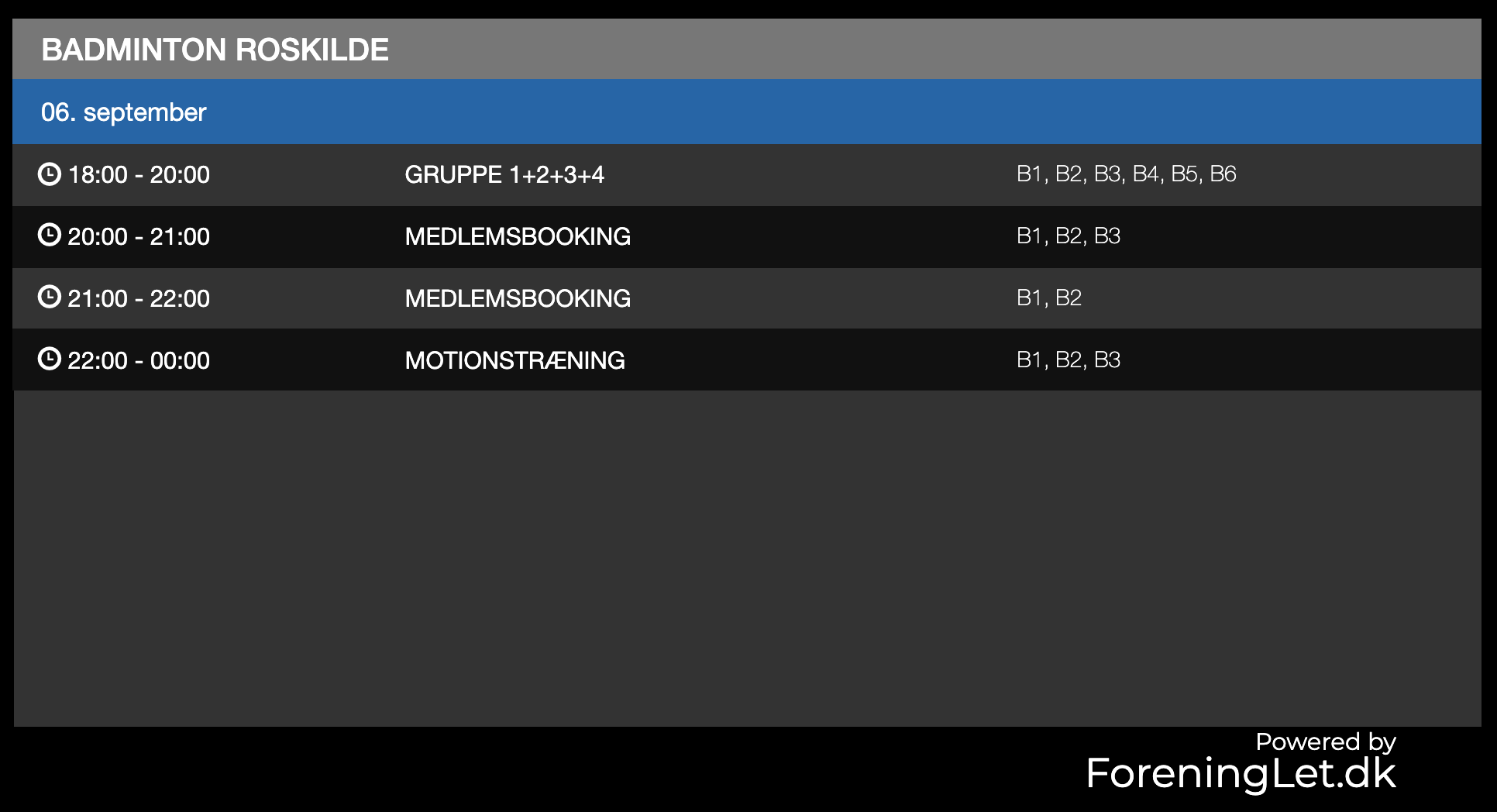
In the screenshot above, the activities and/or bookings taking place on 6 September are shown. B1 to B6 are badminton court nos. 1 to 6.
The info screen updates itself continuously, so when a new day begins, the info screen automatically switches to that day. Likewise the info screen removes activities/bookings that have taken place during the day, so that only activities/bookings that have not yet taken place are shown on the info screen.
You must set up a physical screen or tablet yourself at your location (building, hall, etc.), and then simply make sure the screen can display content from the following URL:
.../memberportal/infoscreen
The three dots must be replaced with the URL your association uses in the Member Portal.
If you have several different locations and want to set up an info screen per location, you can use the following URL for the different info screens:
.../memberportal/infoscreen?resourcecalendars=xxxx
Where xxxx is the ID of the resource calendar you want to show bookings from. If you want to show bookings from more than one resource calendar, use a comma to separate the IDs.
The IDs are found under “Booking -> Resource calendars” on the left.
You can find a direct link to the info screen under “Configuration -> Info screen -> Activities/bookings”.
Latest door openings
You can have the system show the names of the last 12 people who entered through the door. If you also have photos of members, the member’s photo is shown together with the name. It is a prerequisite that you use the system’s door system for this to work. Read more about the door system here: Access control / Door system
It is also a prerequisite that a screen has been set up in the building where members enter. You must set up this screen yourself, and the screen must have internet access.
This function is particularly suited to minimising misuse/”lending” of memberships. If a member has given their access card or personal code to another member, and this other member uses the access card or code to enter the building, the screen will now show the name — and optionally also the photo — of the member to whom the access card or code belongs. This will probably deter some from using another member’s access card or code, and can thereby help prevent misuse.
Setup
Go to “Configuration -> Info screen -> Setup of latest door openings”. Then simply follow the guide on the screen.