Access control / Door system
MemberOrganizer makes it possible to control member access at a location. For example in a building where activities take place.
This can e.g. be members who must enter a fitness centre, or members who must enter a padel court.
There are several advantages to introducing access control:
- Extended opening hours
Staff do not need to be present, as members can let themselves in and out, and thereby in principle the facility can be open around the clock. This naturally requires that you choose a solution with card reader/keypad on the outer door (computer/tablet inside the building is not enough).
- Automatic registration of attendance
If you run e.g. team training, the system can automatically mark members as present on the team — and otherwise issue a fine to the member due to missing attendance.
- Statistics
A log is kept of who shows up and when.
Control options
There are several options for access control of members. These are as follows, and read more about each option in the following sections:
- Card reader/keypad on outer door
A card reader/keypad is mounted on your outer door and members use a membership card or a numeric code to get in.
- MemberOrganizer app
In this solution a card reader/keypad does not need to be mounted on the outer door. Members use the MemberOrganizer app to open the door with.
- Computer or tablet
A computer or tablet (e.g. an iPad) is set up inside the building and members use a membership card or enter their member number to signal that they have shown up.
- Card reader for health card inside the building
A card reader is mounted inside the building, where members use their health card to signal that they have shown up.
Card reader/keypad on outer door
This solution requires that an electrician/locksmith company visits your location and assesses what is required to get the equipment set up. If you already have a card reader/keypad on the outer door, the installation costs will probably be somewhat lower. Not because the card reader/keypad can be reused, but because cables probably do not need to be pulled, but merely a card reader/keypad replaced. It is not likely that an existing card reader/keypad can be reused.
It is impossible to give a price in advance for installation of equipment, as it depends on how easy/difficult it is to pull cables in your building, and how far the cables must be pulled, and so on.
The equipment has fixed prices — it is the installation of the equipment that varies.
If there is a single door, the following equipment is typically set up:
Card reader/keypad on outer door.
Controller box inside the building.
Lock in the door that can be controlled by the controller box.
MemberOrganizer app
This solution requires that an electrician/locksmith company visits your location and assesses what is required to get the equipment set up.
If there is a single door, the following equipment is typically set up:
Controller box inside the building.
Lock in the door that can be controlled by the controller box.
In this solution you thereby save the cost of a card reader/keypad, as opening the door happens via the MemberOrganizer app.
Computer or tablet inside the building
You can install this solution yourselves, as it merely requires that you set up a computer or tablet inside the building.
In this solution there is no access control on the outer door, so this solution does not work at an unmanned location.
Card reader for health card inside the building
This solution requires that MemberOrganizer visits your location and assesses what is required to get the equipment set up. A special card reader must be set up, which can read the health card, and — in a secure manner — register that the person has shown up.
It is impossible to give a price in advance for installation of equipment, as it depends on how easy/difficult it is to pull cables in your building, and how far the cables must be pulled, and so on.
In this solution there is no access control on the outer door, so this solution does not work at an unmanned location.
Enabling the module
Click your association’s name in the top left corner. Here you must tick “Access control” under “Add-on modules”. Click “Save” at the bottom of the page.
Setup of computer or tablet inside the building
Place a computer or tablet in a central place inside the building where members have access. A code must now be entered on the computer/tablet. It is found under “Configuration -> Info screen -> Check-in setup”. Follow the guide on the screen.
A member can now enter their member number on the screen, and the system will then register the member as present.
Linking membership card to member
If membership cards are used, the membership card must be linked to the individual member. This is done by choosing “Members -> Read card / Attach card”. The card is then run through the card reader or the member number is entered in the field. On the next screen you must choose the member who should be linked to the card in question.
The member will then be able to use their membership card, and the system will know that it is the member in question who has used their membership card.
Number of members in building
The system makes it possible to show approximately how many members are in the building at different times. There are two different views:
Members who have entered the building recently.
Table of when members typically enter the building.
Members in the building recently
The list below shows how many members have entered the building recently. Members can thereby get an impression of approximately how many members will be in the building.
Arrived how long ago:
90 minutes: 4
75 minutes: 2
60 minutes: 3
45 minutes: 1
30 minutes: 4
15 minutes: 0
The list will of course never be able to show precisely how many are actually in the building, as the system does not know when a member leaves the building again. But the list can give an indication of the number of members in the building.
Link to the list above is found under “Configuration -> Door system -> Number of members in building”.
Members in the building during the last week
Give members the option to see when there are typically many people in your building. The table below can be shown on the association’s website and will always be based on actual data from the last week. For example you can see that on Thursday between 16:00 and 17:00 12 people entered the building.
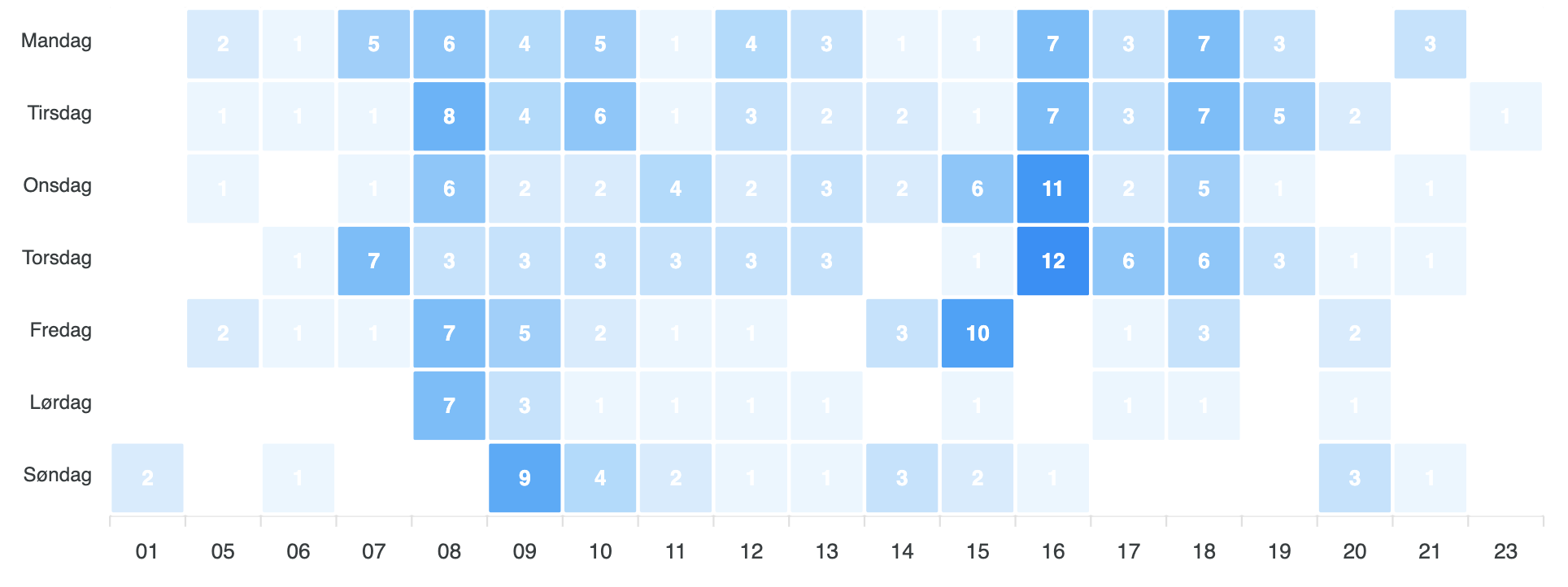
Link to the list above is found under “Configuration -> Door system -> Number of members in building per week”.
Opening door with numeric code
If you need to give access to e.g. craftsmen or cleaning staff etc., and this is e.g. outside normal opening hours, you can set the door system so that the door can be opened with a fixed code that you decide yourselves, and can hand out to those who need the code.
When it is enabled, the chosen code followed by pressing # (hash) will cause the door to open. When it is disabled, the code will never work.
Setup of opening door with code is done under “Configuration -> Door system -> Open door with code”. You can also have the code set up to only work during specific time periods. Contact MemberOrganizer if you want this.
Personal numeric code for members
The system can also be set up so that members each choose a personal code, which they can enter on the keypad, and thereby get access.
The personal code consists of the member’s date of birth followed by a 4-digit code that the member chooses themselves.
If a member e.g. has birthday 24 December 2005, and the member has chosen a 4-digit code which is 1234, the member must enter the following on the keypad to get in:
2412051234
The first 6 digits should be easy for all members to remember, so in practice it is only the last 4 digits the member needs to remember.
This solution is administratively easy (compared with physical access cards), as a member can buy a membership via the Member Portal and the second after the purchase is completed get access with their personal code.
One-time codes
If you use the booking module in the system, the system can automatically generate one-time codes, which only work in the time window around a booking. This can e.g. be used to sell a tennis court to a guest/tourist, who thereby only gets access to the tennis court if payment is made with a payment card in advance.
The guest/tourist books the court themselves via the Member Portal, and thereby there is no administration in offering this. Everything happens automatically.
When the guest/tourist has paid, the system automatically sends an email to the guest/tourist, and in this email a 6-digit code will appear, which can be entered on a card reader that must be set up on the door into the court, and this 6-digit code will only work in the time window around the booking.
Read more about one-time codes in the booking module here: One-time codes for door system.
Chain of associations/shops
If an association, or a shop, is part of a chain, the system makes it possible to link the associations/shops together, so members from one association/shop can enter another association/shop in the chain.
This could e.g. be a chain of fitness centres or similar, where a membership in the local fitness centre gives access to the chain’s other fitness centres in other cities.
The system supports access control in two different ways, which are covered in the following sections.
Access control via card reader/keypad
This solution can be used at an unmanned location, where a card reader/keypad is set up on the outside of the door, and members then use their membership card, or personal code, to enter through the door.
This can e.g. be used for an unmanned fitness centre.
Contact MemberOrganizer if you want this set up.
Access control via scan of membership card at counter
This solution can be used at a staffed location, where a person at a counter scans the member’s membership card with their phone (or a phone that is available). The system then tells the person at the counter whether the member can get access or not.
The member can e.g. be blocked if the member has not paid their subscription or has been cancelled or similar.
The system will show this to the person at the counter.
People who should be able to scan are set up as follows:
Under “Configuration -> Member Portal -> Members who can scan” you must choose the people who should be able to scan membership cards.
The people must download the MemberOrganizer app in the App Store or Play Store.
When the person is logged in to the app, there is a “Scan card” function.
The person can now scan membership cards.
Prices
The prices below assume that equipment is set up on one door. The system can easily handle more than one door. All prices are excl. VAT.
The startup costs cover a controller box at 3,000 kr. and a card reader/keypad at 2,500 kr. If you use the app solution, you do not need a card reader/keypad, as the lock in the door is opened via the MemberOrganizer app.
The price is for one door. Two card readers/keypads can be connected to one controller box, so if you have two doors, the total equipment cost is 8,000 kr. if there must be a card reader/keypad on both doors, and 3,000 kr. if you use the app solution. In the app solution up to 4 doors can be controlled per controller box.
In addition there is the cost of a locksmith company or electrician who must mount the equipment. This cost cannot be calculated in advance, but requires an inspection of your location. You can obtain non-binding quotes from various locksmith companies and/or electrician companies.
You must also have internet at your location.
In addition to the startup costs there is a monthly subscription of 159 kr. excl. VAT.
Troubleshooting
It can happen — rarely — that the door system does not work.
If that is the case, check the following (in priority order), which in 99% of cases is the cause of the problem:
Try restarting the controller box.
The controller box is the small “mini computer” that was set up when the door system was installed. MemberOrganizer cannot answer how the controller box is restarted, i.e. where it gets its power from, as it depends on how the locksmith company/electrician company has set things up in the building.
When you believe you have removed power from the controller box, you must check that none of the green lights are lit on the controller box. If you do not know how power is removed from the controller box, you must remove all power in the building. When you have restarted the controller box, 2 of the green lights on the controller box must light/blink.
Is there internet in the building?
Check e.g. whether https://dr.dk can be loaded in a browser. The computer/phone you test with must be on the same network as the door system. I.e. the network that is in the building where the door system is installed. If you cannot connect to https://dr.dk, then it is the router — and thereby the missing internet — that is the problem. This can usually be solved by restarting the router.
Sometimes restarting the router can also require that the controller box subsequently is restarted.
The two things above are usually the cause of the problem.
If the above does not solve the problem, check the following:
Is only one router connected?
If there are two, it can create network problems.
Try resetting the router. There should be a reset button on it.
Is the network cable in the controller red/orange? Then there may be problems.
Try plugging the network plug from the controller box into another port on the router.