Document archive
MemberOrganizer gives the association the option to store documents centrally. This means that the people who have access to the administration part of MemberOrganizer will also be able to access and view shared documents.
Some people may have read access, while others may also have the right to add new documents to the archive.
Enabling the module
If the “Document archive” menu item is not visible in the menu on the left, click your association’s name in the top left corner. Here you must tick “Document archive” under “Add-on modules”. Click “Save” at the bottom of the page, after which the menu item becomes visible.
You can then choose “Document archive -> Archive” and click the icon at the top right that looks like a brown drawer with a blue arrow, after which you can choose the file to upload.
If you are an administrator in the association or have the permission “Document archive, read and write access” or “Document archive, read-only access”, you will be able to see the documents when you are logged in to MemberOrganizer. It is therefore not necessary for everyone with access to the administration part of MemberOrganizer to be able to see the document archive.
Folders and documents
The document archive looks like this:
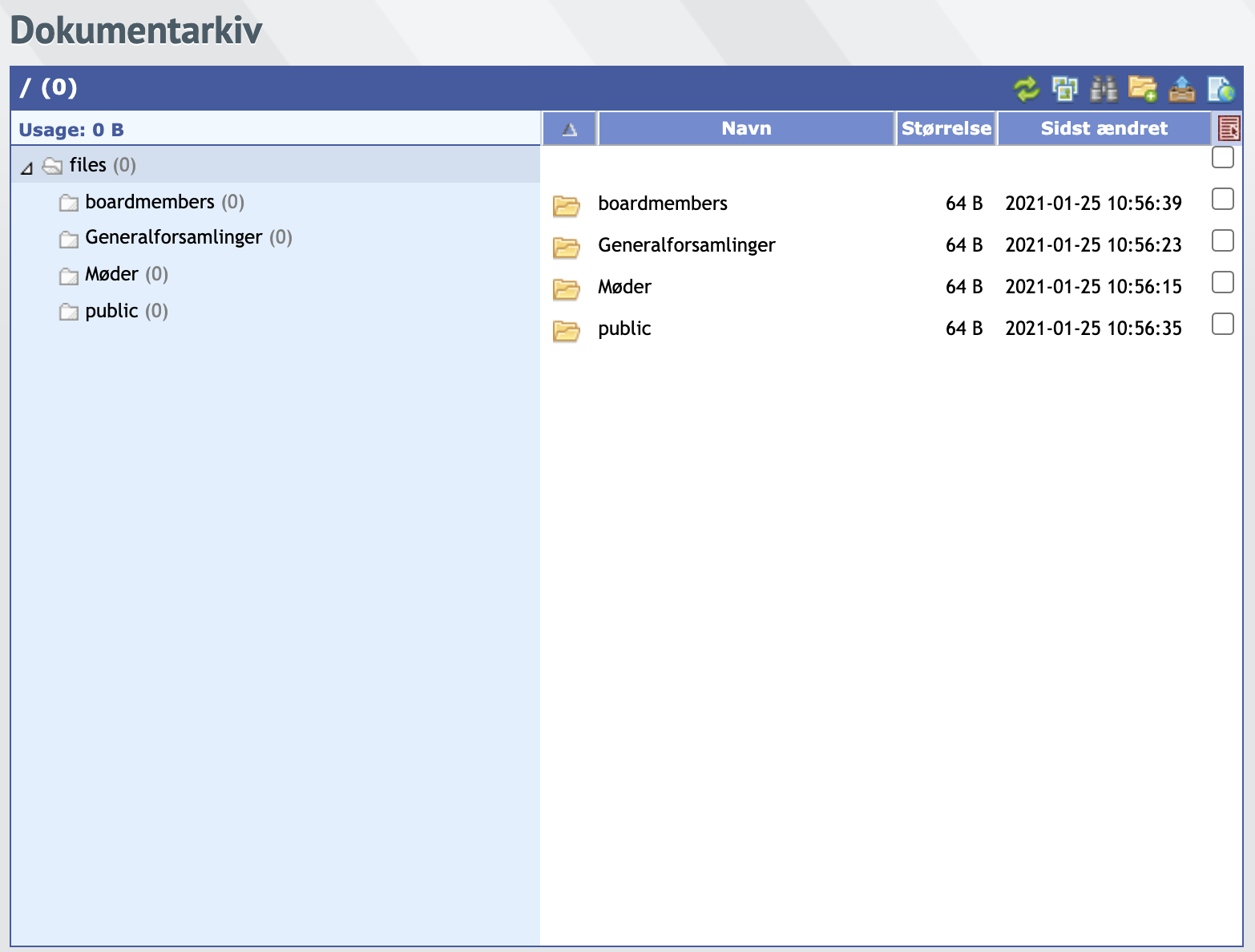
In the example above, four different folders have been created. You decide yourself which folders to create.
Folders are created via the following icon at the top right (marked in red):
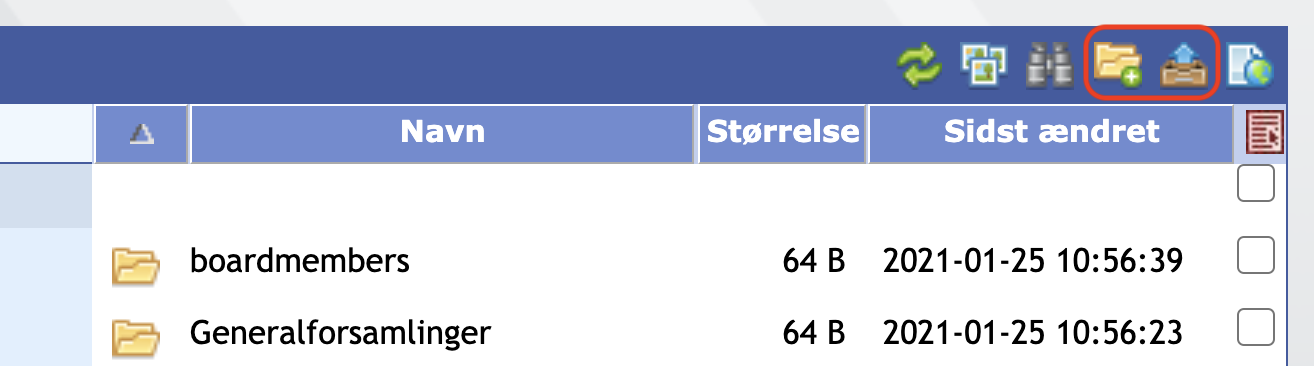
Simply click the yellow folder icon, and then you can give the folder a name.
If you want to add a document, first click the brown drawer icon with a blue arrow pointing upward. Then click where it says “Or click here to browse”:
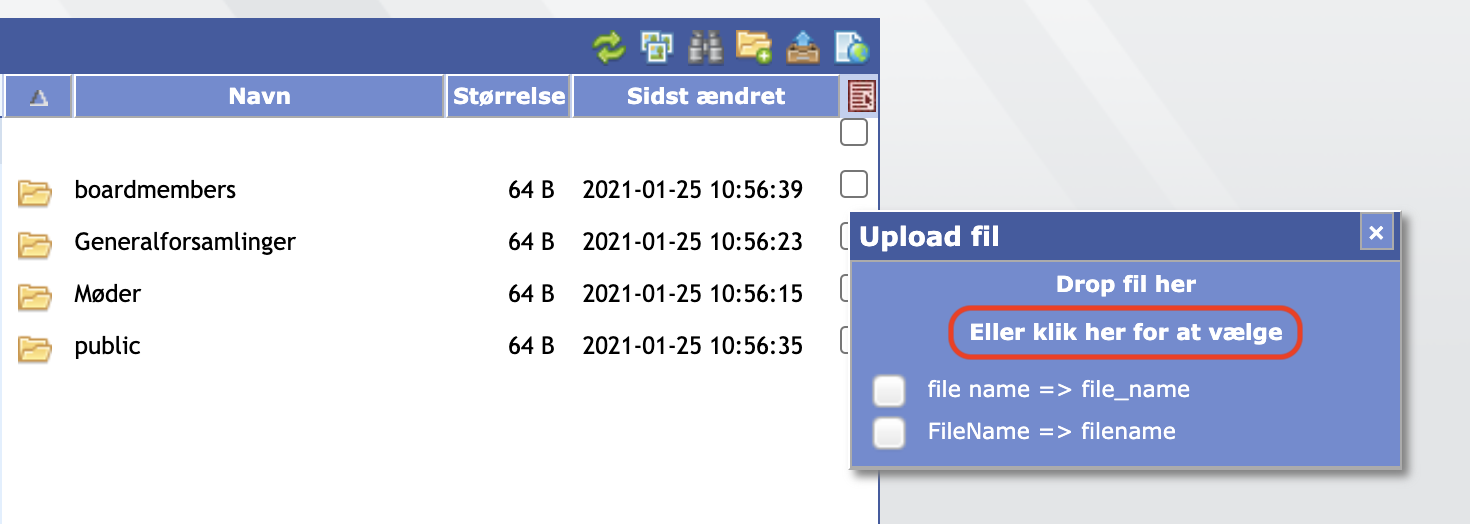
You can then choose the document on your own computer, wherever it may be located.
Documents on members
It is also possible to store documents on the individual member. On the member’s master data you can choose the “Actions” tab at the top right, and then click the “Member documents” button, after which you will be able to upload documents on the specific member.
If you want each member to have a predefined folder structure, contact us and we can set this up for you.
In the Member Portal you can enable members to view the documents that may have been uploaded on the member themselves. The member does however not have the option to upload new documents, or delete existing documents.
Documents in the Member Portal
In addition to people with access to the administration part of the system being able to access the document archive, members, instructors and/or board members can also access documents via the Member Portal.
Read more about options in the Member Portal under Document archive.
Logging on to the document archive externally
When you are logged in to MemberOrganizer, you always have access to the document archive via “Document archive -> Archive”. But you can also log on to the document archive “externally”. For example from File Explorer on a computer or via an iPhone or iPad.
When you log on “externally”, you must use a username and password that is more or less the same as the one you use to log on to MemberOrganizer with. It is however not quite the same. You can find the username and password under “Document archive -> Log on from outside”.
Accessing documents via File Explorer or Finder
File Explorer
On a computer with Windows you can access the document archive via File Explorer. You can connect a so-called network drive. Depending on which version of Windows is used, the way the network drive is connected will vary.
You can search for network drive on Google to find information.
When the network drive is to be created, you need the following information:
- Folder
Look in MemberOrganizer under “Document archive -> Log on from outside”.
- Connect using different credentials
Tick this option.
- Username
Look in MemberOrganizer under “Document archive -> Log on from outside”.
- Password
Look in MemberOrganizer under “Document archive -> Log on from outside”.
A new folder will then be added in File Explorer where the files can be viewed.
Finder
On a Mac computer you can access the document archive via Finder. Do as follows:
Open Finder.
Choose “Go -> Connect to Server”.
Server address: Look in MemberOrganizer under “Document archive -> Log on from outside”.
Click “Connect”.
Name: Look in MemberOrganizer under “Document archive -> Log on from outside”.
Password: Look in MemberOrganizer under “Document archive -> Log on from outside”.
A new folder is then added in Finder where the files can be viewed.
Accessing documents via phone or tablet
If you have an iPhone or an iPad, you can download the app “WebDAV Navigator” from the App Store. The app is free. With this app you can log in and view the documents that the association has uploaded.
When the app is installed, add a new server and enter the following information:
- Name
Enter e.g. “MemberOrganizer document archive”
- Server URL
Look in MemberOrganizer under “Document archive -> Log on from outside”.
- Username
Look in MemberOrganizer under “Document archive -> Log on from outside”.
- Password
Look in MemberOrganizer under “Document archive -> Log on from outside”.